How to Pin Apps to Windows 11 Taskbar

This article explains how to pin application icons to the Windows 11 Taskbar from the Start Menu.
Why Pin Apps to Your Taskbar?
Accessing applications from the Taskbar in Windows is quite convenient! It allows for quicker access to the apps you use most frequently. You can launch them from the Taskbar rather than using the Windows Start menu or double-clicking their icons on the desktop.
Similar to Windows 10 and earlier versions, Windows 11 allows users to pin their favorite app icons to the Taskbar for easy access. Adding your preferred apps to the Taskbar is simple, and we’ll guide you through the process.
How to Add Program Icons to the Taskbar in Windows 11
Pinning apps to the Taskbar in Windows 11 is simple and straightforward. Follow the steps below.
Step 1: Open the Start Menu
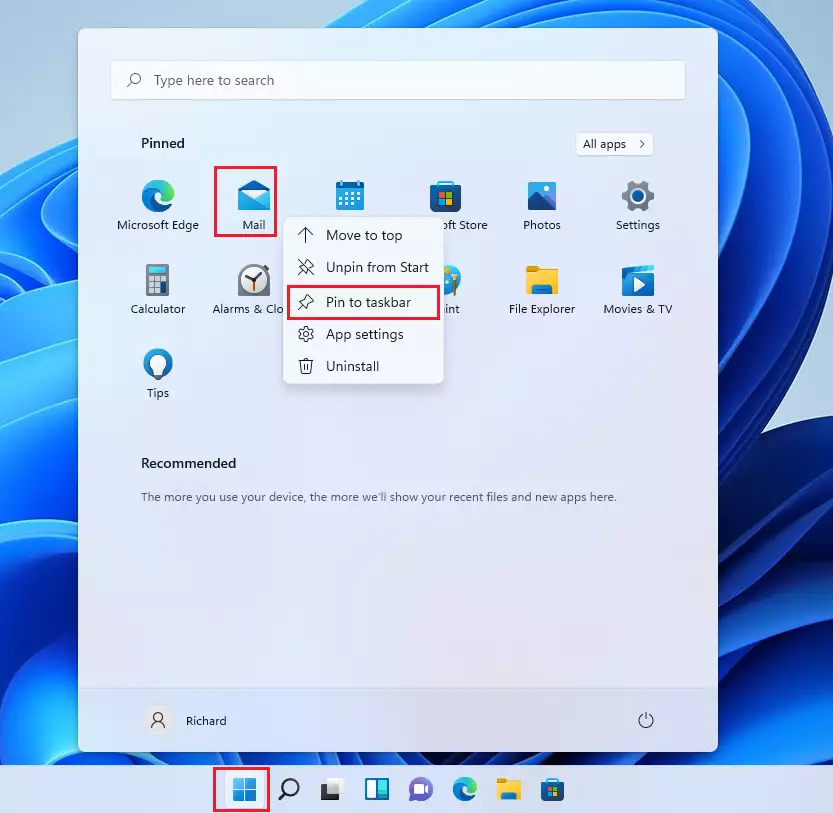
To get started, open the Start menu by clicking the Start button or hitting the Windows key on your keyboard. When the Start menu opens, find the app you want to pin to the Taskbar.
Step 2: Pin Recent Apps
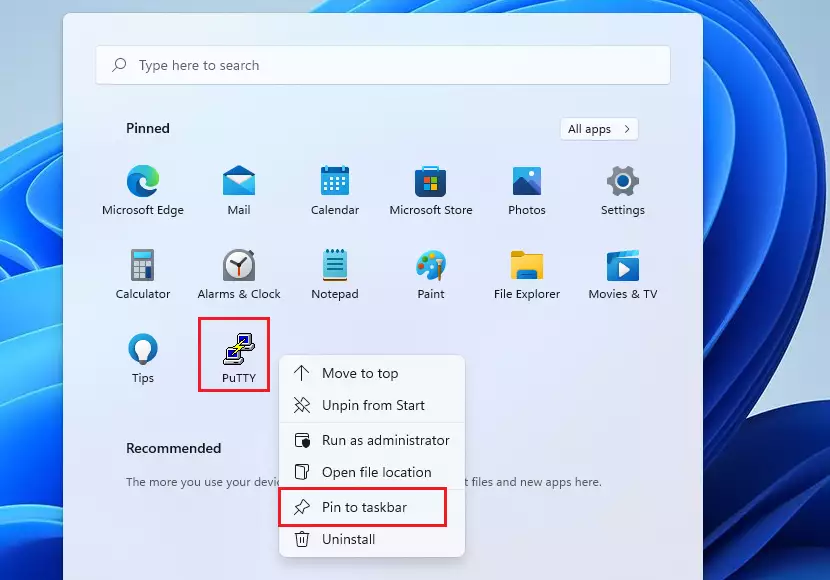
For this example, we will pin the Main apps to the Taskbar. If you have recently used the app, it will appear under Recommended. Once you find the app, right-click the app’s icon and click Pin to the Taskbar, as shown below.
Step 3: View All Apps
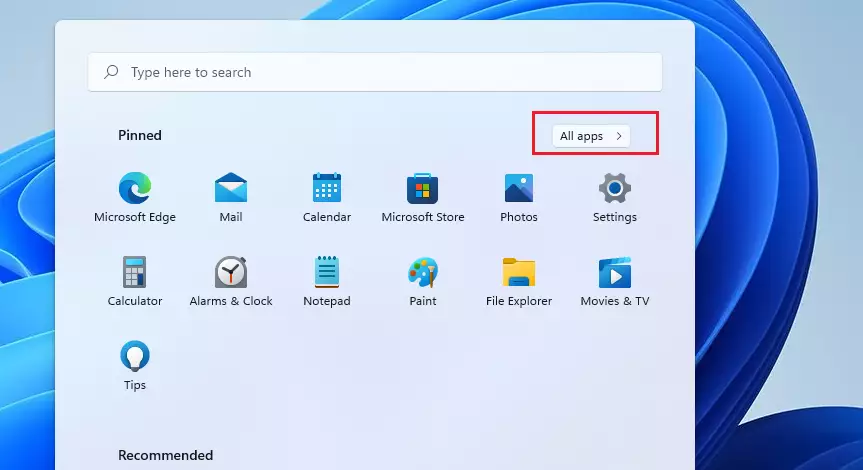
On the Start menu, you won’t see all the apps on the computer. Click the All Apps button to show all apps, as shown below.
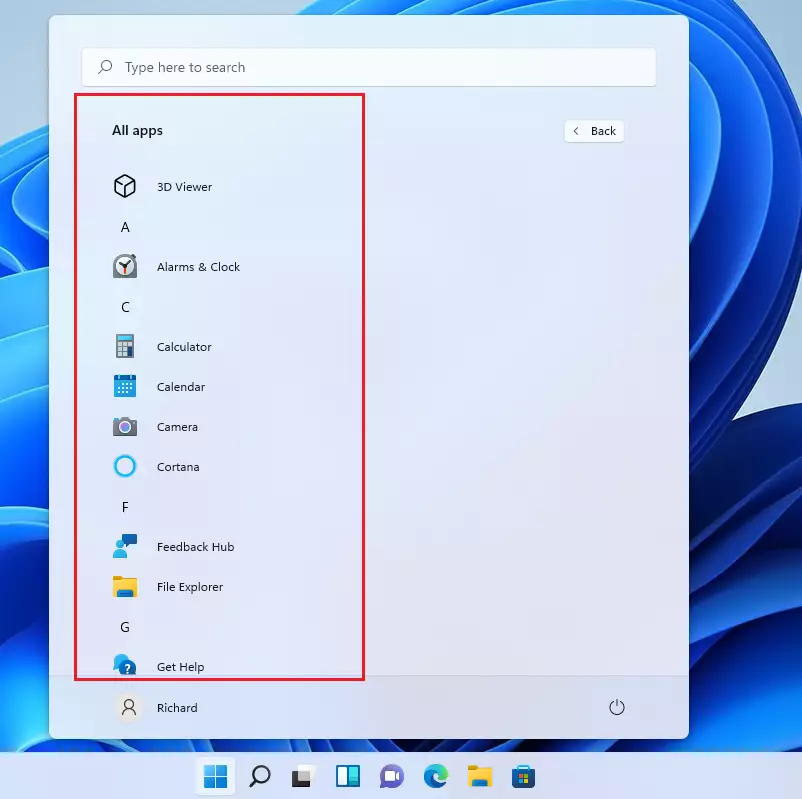
Apps are listed alphabetically. Scroll down the list until you find your favorite apps.
Step 4: Pin Apps from the Full List
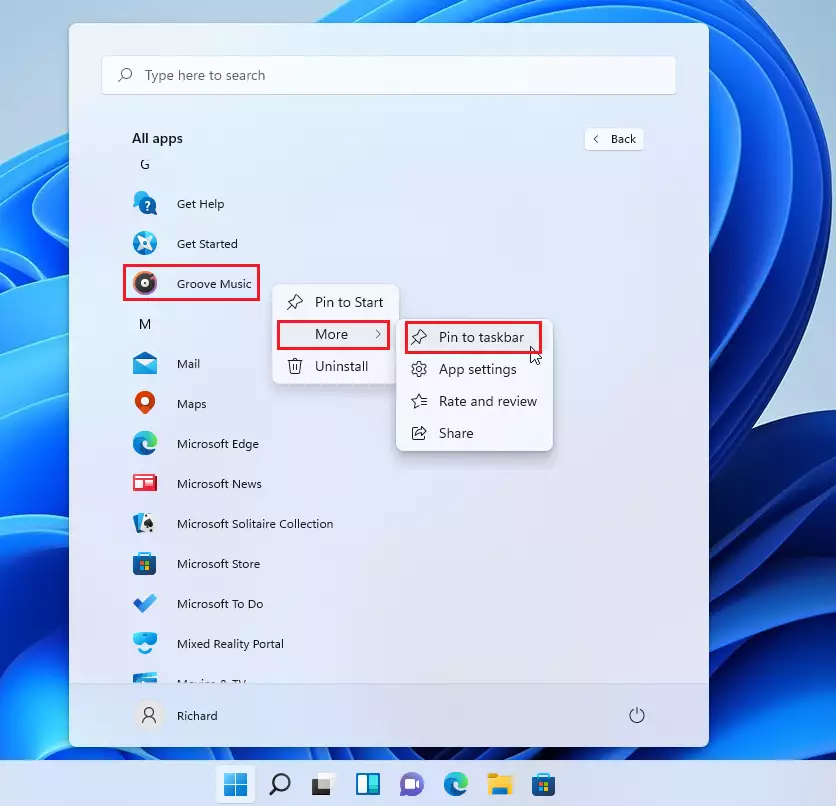
Once you’ve found the apps you want to add to the Taskbar, right-click on your favorite app’s icon. Then select More => Pin to the Taskbar, as shown below.
Step 5: Check Your Taskbar
Now, your Taskbar should have all the apps you pinned.

That’s all to pinning apps to the Taskbar in Windows 11.
Step 6: Pin Apps from File Folders (Optional)
For some apps not on the All Apps list above, you can browse the apps folder and then pin the apps to the Start menu.
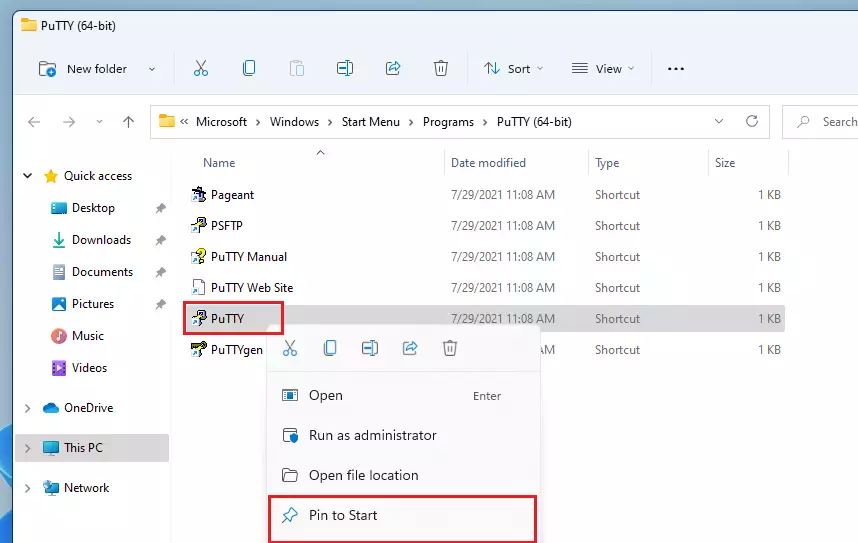
Then go to the Start menu and pin the apps to the Taskbar. This adds another step to the process.
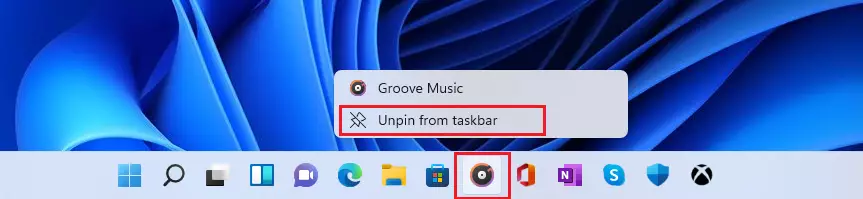
How to Unpin Apps from the Taskbar in Windows 11
If an app is no longer a favorite and you want to remove it from the Taskbar, simply right-click its icon on the Taskbar and select Unpin from the Taskbar.
That should do it!
Summary
- Pinning apps to the Windows 11 Taskbar makes them easier to find and launch.
- You can pin apps directly from the Start menu if you’ve used them recently.
- Use the All Apps button to see all available applications on your computer.
- Right-click any app and select Pin to the Taskbar to add it to your Taskbar.
- You can also browse file folders to find and pin apps that don’t appear in the All Apps list.
- Removing apps from the Taskbar is just as easy—right-click and select Unpin from the Taskbar.
- Keeping frequently used apps on your Taskbar saves time and makes your daily tasks faster.
Was this guide helpful?




[…] You can also launch the app from the Taskbar or Taskbar overflow. […]
[…] You can also launch the app from the Taskbar or Taskbar overflow. […]
[…] You can also launch the app from the Taskbar or Taskbar overflow. […]
[…] You can also launch the app from the Taskbar or Taskbar overflow. […]
[…] You can also launch the app from the Taskbar or Taskbar overflow. […]
[…] Windows builds, the Copilot app was redesigned to work like a regular Windows app that will be pinned to the taskbar with the benefits of a traditional app experience, including the ability to resize, move, and snap […]
[…] builds, the Copilot app was redesigned to work like a regular Windows app that will be pinned to the taskbar with the benefits of a traditional app experience, including the ability to resize, move, and […]
[…] the Copilot app was redesigned to work like a regular Windows app that will be pinned to the taskbar with the benefits of a traditional app experience, including the ability to resize, move, and snap […]
[…] the Copilot app was redesigned to work like a regular Windows app that will be pinned to the taskbar with the benefits of a traditional app experience, including the ability to resize, move, and snap […]
[…] the Copilot app was redesigned to work like a regular Windows app that will be pinned to the taskbar with the benefits of a traditional app experience, including the ability to resize, move, and […]
[…] Windows builds, the Copilot app was redesigned to work like a regular Windows app that will be pinned to the taskbar with the benefits of a traditional app experience, including the ability to resize, move, and snap […]
[…] You can also launch the app from the Taskbar or Taskbar overflow. […]
[…] You can also launch the app from the Taskbar or Taskbar overflow. […]
[…] You can also launch the app from the Taskbar or Taskbar overflow. […]
[…] You can also launch the app from the Taskbar or Taskbar overflow. […]
[…] You can also launch the app from the Taskbar or Taskbar overflow. […]
[…] You can also launch the app from the Taskbar or Taskbar overflow. […]
[…] You can also launch the app from the Taskbar or Taskbar overflow. […]
[…] When you install Windows, default application icons are pinned to the Taskbar. Users can also add app icons to the Taskbar by pinning them there. If you have app icons that you don’t want on the Taskbar, right-click the icon and select Unpin from the Taskbar. […]
[…] You can also launch the app from the Taskbar or Taskbar overflow. […]